If, like me, you use HBS3 to make automatic backups from one QNAP NAS box to another then you may occasionally find they failed and the reason for the failure is that the RTRR service on one of the NAS boxes has disabled itself. I was getting this problem at least every week and it was driving me crazy so I tried to find a solution.
The nature of the problem
I have two QNAP NAS boxes – one of them stays on 24×7 but the other one operates on a power schedule to keep it switched off during the day and only be on at night when my backups run. The first box uses HBS3 to make overnight backups to the second box and for this the RTRR service is used. The second box, and the one that had all the problems is a TS-251+.
It was all working nicely until one day many months ago, after a system update, I started to get email alerts telling me the overnight backup had failed. The cause was always the same – the RTRR service on the destination box had disabled itself.
This was not happening every night, but it was often enough to be a real nuisance. For a long time I just kept restarting the RTRR service manually but it was getting to be a chore so I searched for a solution that would keep the RTRR service enabled even after a power cycle.
Why use a power schedule?
The reason for scheduling daily power off/power on cycles stems from the location of the NAS. Firstly, it’s in a cupboard so heat is an issue but it’s also located where noise (yes, these boxes are definitely not silent when equipped with “old technology” spinning disks) can be a problem during the day. This type of daily power cycle may not be how the NAS boxes are designed to be used, but I’m hopeful it will not reduce the working life of the unit.
What might the cause be?
My best guess is that the HBS3 service is starting early during boot up and it then attempting to start the RTRR service before all the dependencies are ready. This seems like a plausible explanation especially as the version of the Linux operating system used on my QNAP is a fairly simple one that doesn’t use Systemd.
The solution
I tried all the easy options – things you could just do from the web interface – but in the end it required a script running at startup. The script has a delay then forces the RTRR service to restart. This seems to have done the trick as it’s been running for about three weeks with no errors.
Creating the script
It may be possible to use FTP to create the script. However, the method I’m familiar with for creating the script requires the use of SSH. There is a very helpful article provided by QNAP here:
Running Your Own Application at Startup | QNAP
For SSH to work, you must have the SSH service active on your NAS. Check it is activated from the web interface under Control Panel > Network and File Services > Telnet/SSH:
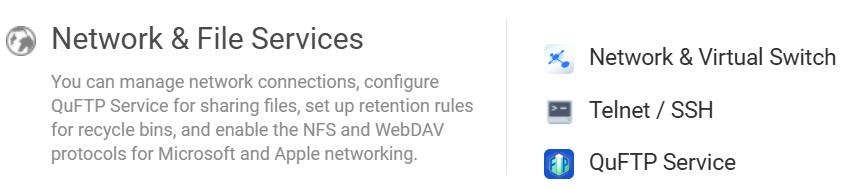
Tick the box that says “Allow SSH connection” and leave the port number as 22 because that is the default.
Then you will need an SSH client. I always use Putty for SSH access. It runs on Windows and possibly on other operating systems too. Just enter the IP address of your NAS box and leave the default port 22. Once logged in, you will need a text editor – Nano is very easy to use but the only editor pre-installed is vi. It is much less intuitive than Nano, but it’s already there. Here’s a useful link if you’re unfamiliar with vi:
A Beginner’s Guide to VI and VIM: Mastering Text Editing in Linux – Steve’s Data Tips and Tricks
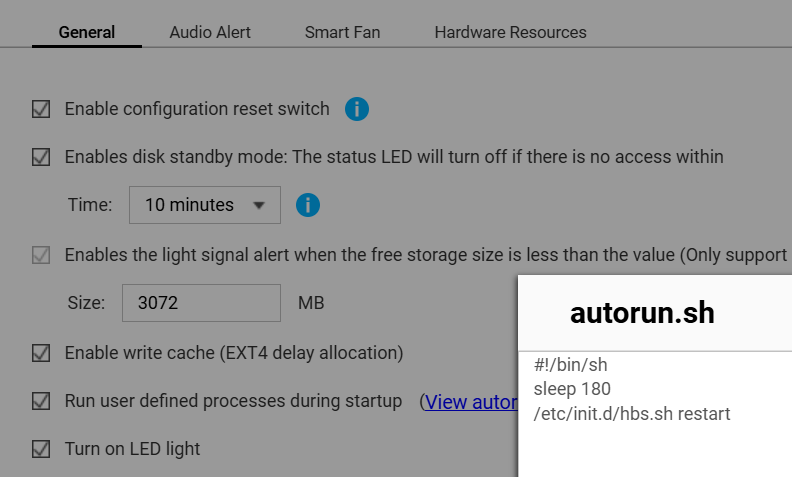
Follow all the instructions in the QNAP article and create a file called autorun.sh in the location they describe. Remember also to make it executable using the chmod command as described in the QNAP article. Here are the contents of my autorun.sh script:
#!/bin/sh
sleep 180
/etc/init.d/hbs.sh restart
Activating the script
Once you’ve created the autorun script, you can logout on SSH and return to the more familiar web interface to activate it. For this, you have to go to Control Panel > Hardware > General. You will see there is an option to tell QNAP it should run a “user defined process during startup”. Simply tick that option and save the changes.
To check that you have put the correct script in the correct place, try clicking on the link that says “View autorun.sh”. It should look like this:
Conclusion
The only other point worth noting is that the QNAP security councillor is likely to issue a new warning that you have a user defined script enabled.
Hope this was helpful. If it was, please click the like button or leave a comment.


Leave a Reply